iMessage, free on every plan
iMessage your leads from your own number. Completely free.
Connect a Mac that's signed in to Messages and your CRM texts from your real iPhone number: blue bubbles, audio messages, photos, read receipts and tapbacks. Add every teammate's number, run several numbers on one Mac, or let one number text for several of your businesses. No fee per number, and no credits per iMessage or AI reply.
Watch it work23 sec10 iPhone numbers: $0 here, $12,000+ a year at Sendblue. Free on every plan, as many numbers as you connect. Now in beta.



Loved by 1,300+ businesses
How it works
Set up in about five minutes
- 01
Get a code
In Settings → Phone → iMessage, download the Mac app and get a one-time connection code.
- 02
Pair a Mac
Open the Mac app on a Mac signed in to Messages with your iPhone's number, type the code and follow the checklist until it's all green.
- 03
Text from the CRM
Pick iMessage or SMS on any message. Replies land in the same thread, and automations and AI replies send through your number too.
From our YouTube channel
iMessage, start to finish.
How to connect your Mac and send blue-bubble texts to your leads from the CRM, in one video.
The savings
10 iPhone numbers: $0 here. $12,000+ a year at Sendblue.
Hosted iMessage services bill every number, every month. On Zuops the numbers, the setup, every iMessage and the AI's replies cost nothing. Pick how many numbers you'd run.
iPhone numbers
Your bill on Zuops
10 numbers, a year
- 10 iPhone numbers$0Your own numbers, connected through your Mac
- AI replies from your numbers$0No credits for the AI, and none for the iMessage it sends
- iMessages, sent and received$0Unlimited replies, 500 new conversations a day from day one
- Setup and activation$0
Total
$0
You keep, vs Sendblue
$12,000+a year
Sendblue bills $1,000 a month for 10 numbers, and texting first costs more (Enterprise).
Hosted iMessage, 10 numbers, a year
Pick one to compare
A year at monthly prices plus one-time fees. Apps that use your own Mac, like Zuops does, charge $58 to $399 a month for 10 numbers. Each company's published price, checked October 2026.
Compare them side by sideFor agencies
Sell iMessage to your clients. Keep every dollar.
The CRM and the Mac app carry your agency's name, and the numbers cost you nothing, so whatever you charge for them is profit.
You charge, per number a month
Your cost: $0. $99 is still less than Sendblue's $100 a line.
Compare
Zuops vs Sendblue, LoopMessage, Blooio and Blue Reacher.
They host the iPhones and bill you for each number. Zuops texts from your own iPhone numbers through a Mac you already have, so the numbers cost nothing and the CRM, AI replies and automations come with them. What they do that we don't: run the Mac for you.
Compare Zuops with
- Price per number, a month$0$100, inbound-first
- 10 numbers, first year$0$12,000+
- Texting new people first50 a day per number, from day oneContacts text first; full outbound on Enterprise
- Replies and messagesUnlimited1,000 inbound contacts a day
- Whose numberYour own iPhone numberA line they provide
- What you needA Mac you own (4 to 6 numbers each)Nothing, they host it
- Inbox and CRMAPI
- AI repliesBuilt in, $0 a replyBuild your own
- Booking and pipelines
- White-label for agencies
- Price per number, a month$0$100, inbound-first$104.99$289 ($195 at 6+)$249 ($199 at 4+)
- 10 numbers, first year$0$12,000+$13,049$23,400$24,329
- Texting new people first50 a day per number, from day oneContacts text first; full outbound on EnterpriseUp to 50 after a 21-day warm-upUnlimited on a dedicated line50 opted-in / 30 cold
- Replies and messagesUnlimited1,000 inbound contacts a dayWait when the daily cap is hitUnlimitedNot metered
- Whose numberYour own iPhone numberA line they provideA sender they provideA number they provideA line they manage
- What you needA Mac you own (4 to 6 numbers each)Nothing, they host itNothing, they host itNothing, they host itNothing, they host it
- Inbox and CRMAPIBuild it or connect a CRMThrough your CRMThrough GoHighLevel
- AI repliesBuilt in, $0 a replyBuild your ownBuild your ownThrough your CRM or APIIn your CRM
- Booking and pipelinesIn your CRM
- White-label for agencies
From each company's own pricing page, read in October 2026, monthly billing: Sendblue, LoopMessage, Blooio, Blue Reacher.
Blue bubbles
Your customers see your name, not a number they don't know.
Texts go out from the iPhone number your customers already have saved, so they show up as you, in blue. Record an audio message in the CRM and it arrives as a clip they play right in Messages. Voice memos customers send are transcribed, so you can read them and the AI can answer. Photos go both ways, you see Delivered and Read, their hearts and likes land on the message they're for, and replies you type on the iPhone show up in the CRM too.
- Audio messages recorded right in the CRM
- Voice memos transcribed for you and the AI
- Photos, read receipts and tapbacks
Unlimited numbers
Every teammate's own number, free.
Each team member can connect their own iPhone number, as many as you have. An admin chooses who may text from each number, the inbox filters by number, and every message shows who sent it and from which number, with the Activity Log keeping the record.
- Unlimited numbers, $0 each
- Choose who can text from each number
- Filter the inbox by number
One Mac, many numbers
One Mac runs several numbers. One number can serve several businesses.
Give each number its own user (a profile) on the Mac, signed in to Messages with that iPhone's Apple ID. Switch users and every number keeps sending and receiving in the background; in our tests replies reached the CRM in a second or two. Plan on 4 to 6 numbers per Mac with 16 GB of memory or more, and a MacBook keeps texting with its lid closed. One number can also text for several of your sub-accounts: each business connects with its own code, and a text goes to the business whose CRM has that person. The full setup is below.
- One Mac user (profile) per number
- 4 to 6 numbers per Mac with 16 GB+
- Works with a MacBook's lid closed
Free AI replies
The AI texts from your iMessage number. Zuops charges nothing for it.
Turn the AI on for a number and it answers your leads by iMessage, books them and follows up, from your own number. Those replies cost nothing: no credits for the AI and none for the iMessage it sends, however many it sends.
- Answers, books and follows up by iMessage
- AI on or off for each number
- Send as iMessage in automations
Keeps your number safe
Paced so your number doesn't get flagged.
Apple doesn't publish a limit, and numbers that text too many strangers get reported as junk. So each number starts up to 50 new conversations a day, no more than 6 an hour, and a first text stays short and plain. Until someone answers, a number tries them up to 5 times (texts sent within 10 minutes count as one try), then offers a regular text instead. Replies, and people who text you first, never count. Bulk texts never go through iMessage, and STOP works the same.
- 50 new conversations a day, from day one
- Replies always unlimited
- Bulk texts never sent as iMessage
Before you start
What you need
iMessage only runs on Apple devices, so your texts go through a Mac you keep at the office. This is the whole list.
- A Mac with Apple silicon (M1 or newer) on macOS 14 or later. A Mac mini that stays plugged in is ideal; a plugged-in MacBook works too, even with its lid closed.
- An iPhone for each number, with iMessage turned on. The Mac sends and receives iMessages by itself, so the iPhone doesn't have to stay next to it.
- An Apple ID for each number. Two numbers can't share one Apple ID, and one Apple ID can't be signed in on two users of the same Mac.
- Internet on the Mac, and any Zuops plan (from $19/mo). iMessage itself costs nothing: no fee per number, no credits per message.
- For people without iMessage: RCS or a regular text from the iPhone (it stays on, with Text Message Forwarding turned on for the Mac), with a Zuops business number as the backup if you have one. A number isn't required.
- About ten minutes for the first number and five for each one after it.
Several numbers, one Mac
Add another number to the same Mac
Each number gets its own user on the Mac, the way a family shares one computer. You set it up once. After that every number keeps texting in the background, whichever user is on the screen.
- 1
Add a Mac user for the number
System Settings → Users & Groups → Add User. A Standard user is fine; name it after the number or the teammate.
- 2
Turn on the user menu
System Settings → Control Center → Fast User Switching → Show in Menu Bar. That's how you switch users without logging out.
- 3
Sign in to Messages there
Switch to the new user and sign in to Messages with the Apple ID of the iPhone that has this number.
- 4
Make Messages text from the number
In Messages → Settings → iMessage, tick the phone number and choose it under Start new conversations from. A new user often starts on the Apple ID's email; the Mac app spots it and shows you how to switch.
- 5
Connect the Mac app
On that user, open the Mac app, finish its checklist and connect it with a new code from Settings → Phone → Add another number in your CRM.
- 6
Switch back. Don't log out
Use the user menu to go back to your own user or the Login Window. A switched-out user keeps texting; a logged-out one stops.
Good to know
- Plan on about 2 GB of memory per number: 4 to 6 numbers on a Mac with 16 GB or more. For more, add another Mac.
- After a restart, sign in to each user once, or set one to sign in by itself. A number shows Offline in the CRM until its user is signed in.
- Each number keeps its own daily limit, and Apple can block a whole Mac from iMessage for spam, so spread busy numbers across Macs.
- One switch in the Mac app keeps a MacBook texting with its lid closed, for every number on it. Keep it plugged in, on a desk.
- One number can also text for several of your sub-accounts: connect the same Mac user to each one with its own code.
See it in action
See iMessage in action.
Recorded inside Zuops with a demo business. Nothing here is a mockup.
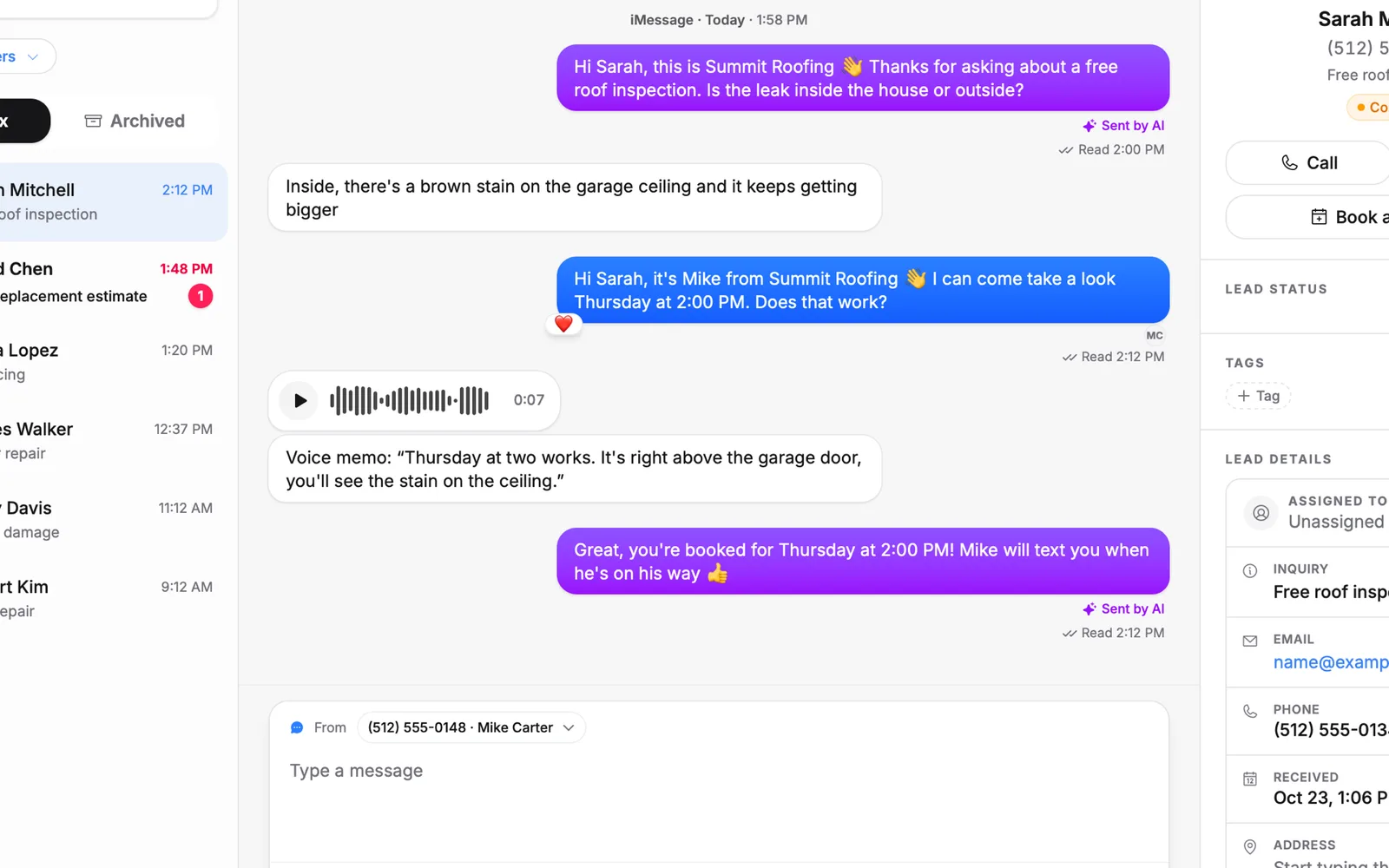
1/5 Text from your own iPhone number
Why iMessage
Everything iMessage, none of the per-number bills.
Completely free
No fee per number, no setup fee and no credits per iMessage or AI reply, on every plan. 10 numbers at Sendblue: $12,000+ a year.
Unlimited numbers
Every teammate's iPhone number, several per Mac, and one number for several businesses.
Audio messages
Record in the CRM and it arrives as a clip they can play. Voice memos you get are transcribed.
Green when it has to be
People without iMessage, or who text your iPhone by SMS, get a regular text from the same number.
AI and automations
AI replies by iMessage at no charge, on or off per number. Send as iMessage in automations, scheduled texts and Meta lead forms.
White-label
The CRM and the Mac app carry your agency's name for every client.
Private by default
Only conversations with people in your CRM sync. Group chats, personal texts and older history stay on the Mac.
Covered when the Mac is off
If a Mac goes offline, its texts wait or go out from your business number instead, your choice per number.
Checks itself
The Mac app watches its own setup and tells you exactly what to fix, with pictures, before a customer notices.
Pricing
iMessage is free on every plan: unlimited numbers, no credits per iMessage or AI reply.
Every plan includes the whole platform. Usage comes out of your plan's monthly credits.
See plans and credit pricesFAQ
iMessage: common questions
Cost and basics
How much does iMessage cost on Zuops?
Nothing. It comes with every plan (from $19/mo): no fee per number, as many numbers as you connect, and iMessages sent or received use no credits.
Can the AI reply by iMessage, and what does that cost?
Yes, and it costs nothing. Turn AI on for a number and it answers your leads by iMessage from that number; Zuops charges no credits for the AI's reply and none for the iMessage it sends, however many it sends. Automations, appointment reminders, scheduled messages and Meta lead-form follow-ups send through it too, and replies land in the same thread.
Do I need a business phone number too?
No. A business can text with just a Mac and its iPhone: iMessage, plus RCS and regular texts from the iPhone for people without iMessage, with AI replies, automations and lead forms working the same. A Zuops number is a backup for when the Mac is offline, and you need one for calls, bulk texts and missed-call texts.
Is this Apple Messages for Business?
No. Apple Messages for Business is Apple's program for brands, reached from Apple Maps or a website button, and the customer has to write first. This is your own iPhone number texting your own customers, the way you already do from your phone.
Setting up
Do I need a Mac?
Yes. iMessage only runs on Apple devices, so each number is a user on a Mac with Apple silicon (M1 or newer, macOS 14 or later) signed in to Messages with that iPhone's number. One Mac can run several numbers. A Mac mini that stays plugged in is ideal; a plugged-in MacBook works too, even with its lid closed.
Do I need a separate iPhone and Apple ID for each number?
Yes. A number comes from the iPhone (its SIM) that has it, and that iPhone shares it with its own Apple ID. So each number is one iPhone and one Apple ID, and that Apple ID is signed in on one user of the Mac. Teammates can keep using their iPhones as usual.
Can one Mac run several numbers?
Yes. Each number is its own user (a profile) on the Mac, signed in to that number's Apple ID. When you switch users, the others keep sending and receiving in the background, and each number keeps its own daily limit. Plan on 4 to 6 numbers per Mac with 16 GB of memory or more. If Apple blocks a Mac for spam, every number on it stops, so pace new conversations.
How do I add a second number to the same Mac?
Add a Mac user for it in System Settings → Users & Groups, turn on Fast User Switching in Control Center, switch to the new user and sign in to Messages with that iPhone's Apple ID. In Messages → Settings → iMessage, tick the number and pick it under Start new conversations from. Then open the Mac app there and connect it with a new code from Settings → Phone. Switch back from the user menu; don't log out. The full steps are on this page.
What does the Mac app need permission for?
Full Disk Access, so it can see new messages as they arrive, and permission to send through Messages. It also offers to open at login and to keep the Mac awake. It never asks for your Apple ID password.
Why does my Mac say it can't check the app?
While iMessage is in beta, the Mac app isn't signed by Apple yet. The first time you open it, go to System Settings → Privacy & Security and click Open Anyway. You only do this once.
Day to day
Can I keep using the Mac?
Yes. Texting runs in the background, so you can keep working on it. Just don't log out of a number's user or quit Messages; switching users is fine.
What happens if the Mac goes offline or restarts?
The CRM shows that number as Offline within minutes. Texts waiting for it either wait or go out from your business number instead, whichever you set for the number. After a restart, sign in to the Mac (or to each number's user) once and everything picks up where it left off.
Does my iPhone have to stay on?
Not for iMessages: the Mac sends them on its own. Green texts from your iPhone's number go through the iPhone, so for those it needs to be on, with Text Message Forwarding turned on for the Mac.
Why do my texts go out from an email instead of my number?
Messages on each Mac user picks its own address, and a new user often starts on the Apple ID's email because the number arrives from the iPhone a few minutes later. Open Messages → Settings → iMessage on that user, tick the number and choose it under Start new conversations from. The Mac app checks this for you and shows exactly what to change. A conversation that already started from the email keeps it, so delete that one in Messages.
Will my personal texts show up in the CRM?
No. By default the Mac only syncs one-to-one conversations with people already in your CRM. Group chats and everyone else stay on the Mac.
Will my old messages be imported?
No. Only texts from when you connect the Mac onward, and only with people in your CRM (or every one-to-one chat, if you choose). Older history and anything Messages in iCloud downloads later stay on the Mac.
Texting leads
How many iMessages can I send a day?
Replies, and texts people send you, are unlimited. Each number can start 50 new conversations a day from the first day, and 6 an hour, so it isn't flagged as spam. Someone who hasn't answered yet gets up to 5 tries (a few texts within 10 minutes count as one), then the CRM offers a regular text instead. Once they reply, there's no limit. Bulk texts never go through iMessage. Add numbers to reach more people.
What if a lead doesn't have an iPhone?
The Mac finds out within seconds and sends it as RCS or a regular text from your iPhone instead. If the iPhone can't send it, or the Mac is offline, it goes from your Zuops business number, if you have one. Someone who texts your iPhone by SMS gets the answer from that same iPhone.
Can I send audio messages?
Yes. Record one in the CRM's composer and it arrives as an audio clip they can play in Messages. Voice memos customers send play in the thread and are transcribed, so the AI can answer them too. On a Mac used only for texting, Advanced mode sends real iPhone-style voice messages and lets you react from the CRM, but it needs a Mac security setting turned off, so most businesses skip it.
Do shared locations, polls and reactions show up?
Yes. Hearts, likes and other tapbacks show on the message they're for. A shared location, a poll or a Digital Touch shows as a note in the thread; a live Find My location opens on your iPhone, since Apple keeps its details encrypted.
Can one number text for several businesses?
Yes. Each sub-account connects to the same Mac with its own code. A text goes to the business whose CRM has that person, otherwise the one that texted them last. The number's daily limit is shared between them.
Team and API
Can I see which teammate sent a message?
Yes. Every iMessage shows the person and the number it went from, the inbox filters by number, and sends are kept in the Activity Log. An admin chooses who may text from each number.
Can I use it through the API?
Yes. GET and PATCH /v1/imessage/lines list your numbers and change their settings, POST /v1/messages takes send_as to send as iMessage, and the MCP server has a manage_imessage tool.
Still have a question?
Ask us. You get an answer in about a minute, and a person from the team takes over when needed.
Ask our teamFree iMessage from your own numbers.
Connect a Mac in about five minutes and every lead gets your real number, in blue. Add every teammate's number, free.
- Unlimited numbers, free
- Plans from $19/mo
- Cancel anytime